Nvidia wants Omniverse to be metaverse builders' glue
Nvidia wants Omniverse to be metaverse builders' glue
This story is part of CES, where CNET covers the latest news on the most incredible tech coming soon.
The word metaverse has infiltrated every conversation on VR, AR, virtual communities and the future of 3D graphics. It's exhausting. One key promise in most metaverse pitches, though, is some sort of universal interoperability with other platforms and tools. Nvidia sees its Omniverse, an interconnecting online toolkit for 3D creative apps, as a way of making that happen. The software's now out of beta as a free service for people owning PCs using Nvidia GeForce RTX graphics, the company announced at its virtual CES 2022 press conference, along with a whole new lineup of graphics chips.
Nvidia's Omniverse platform is cloud-connected 3D collaboration toolkit that was previously in open public beta, and became available for business subscriptions last year, which offer larger-scale secure connections for companies. The free version is limited to two-person collaboration, but the possibilities seem incredibly useful, and the software hooks into (or will hook into) a ton of other applications: Blender, Maya, Autodesk, Adobe and Epic's MetaHuman are some of the many apps that work with it.
Omniverse is clearly a 3D collaborative creative platform, and Nvidia's plans for it cross over into AI, robotics, autonomous vehicle development, VR, AR and gaming. But at the same time, Omniverse's support of connected standards is exactly what the rest of the AR, VR and even crypto landscape are currently trying to head towards.
Nvidia announced that 3D asset sites will be able to be dragged and dropped into Omniverse-connected apps, including Sketchfab (owned by Epic) and Turbosquid (owned by Shutterstock). There's also a new tool called Audio2Face that generates avatar facial animation from a voice recording, using AI, and exports it into Epic's ultra-realistic MetaHuman software.
Nvidia's Omniverse VP Richard Kerris sees that cloud-based connected processing power, and support of common standards, as the stuff the rest of the metaverse promises are in need of. "The metaverse is already here to some extent," Kerris said in a conversation with CNET last fall. "We have a lot of the basic technologies available to us."
But Kerris explained that virtual worlds created with platforms like Omniverse are essential for Nvidia's AI training. "At this moment, one of the things we need to create these AIs, that's fundamental, is a simulation of virtual worlds," he said. "If you're going to create robots that know how to operate inside our world, they need to be trained somewhere safe, and they need to be trained for hours and hours."
Omniverse looks like a tool to accelerate creative work on the PC side. Maybe it will also link into being a backbone for a next wave of AR and VR creative apps, too.
It was back in January, at CES 2012, that we first saw the $1,399 13-inch Acer Aspire S5 ultrabook. Of course, if you remember the S5 from CES, you'll recall its most unique feature -- a tiny motorized door at the back of the bottom panel that opens at the touch of a button, revealing a ports-and-connections block, including HDMI and Thunderbolt (making this one of only a handful of Thunderbolt laptops). Acer calls this the MagicFlip I/O Port.
It's certainly clever, and it earns points for originality and engineering. But call me crazy, I'd prefer to have my USB ports sitting right on the side of the laptop, easy to access without having to push a button and wait.
Another potential issue is that the MagicFlip is just one more mechanical part to potentially break down (but note that it has worked perfectly fine in the CNET Labs for several days and dozens of activations). If, for whatever reason, it gets stuck or stops working, you're sitting on a laptop with very limited connectivity. Especially in a thin, light ultrabook, having fewer moving parts is better -- hence the move to SSD storage over spinning-platter hard drives.
That said, the motorized port door is not even the most noteworthy thing about the S5, nor its biggest selling point. Even compared with other 13-inch ultrabooks, this system is incredibly thin and light. It weighs only 2.6 pounds (without its power adapter), and is 15mm thick at its thickest point (tapering to 11mm at the front).
That makes the 13-inch MacBook Airlook and feel a bit chunky in comparison, which is no easy task. Acer also manages to work in an Intel Core i7 CPU (but no discrete graphics, sorry), so it's certainly powerful enough for everyday use.
At $1,399, this is scraping the high end of the ultrabook market, and I'm not sure even the extreme portability justifies the price, but it's certainly tempting -- this is a laptop that's simply fun to use.
What I'd love to see is a version of the S5 that stays as thin and light, but skips the gimmicky motorized flap, perhaps adding a millimeter or two to fit in the USB and HDMI ports. The MagicFlip can't be an inexpensive part to include. Dropping it might allow Acer to bring the price down closer to $1,000, where it would be much harder to resist.
Price as reviewed
$1,399
Processor
1.9GHz Intel Core i7-3517U
Memory
4GB, 1333MHz DDR3
Hard drive
256GB SSD (128GB x2, RAID 0)
Chipset
Intel HM77
Graphics
Intel HD4000
Operating System
Windows 7 Home Premium (64-bit)
Dimensions (WD)
9.8 x 2.6 inches
Height
0.43-0.59 inches
Screen size (diagonal)
13.3 inches
System weight / Weight with AC adapter
2.6/3.3 pounds
Category
13-inch
In a matte-black brushed metal, the Acer Aspire S5 looks and feels sophisticated, if anonymous. Only a small chrome Acer logo on the back of the lid gives away your laptop's provenance. The system is so light, at barely 2.6 pounds, that the metal body (aluminum and magnesium) helps it feel more substantial and secure.
The look is very minimalist, as you'd expect from a laptop without visible ports. Besides the keyboard and touch pad, only the button to activate the MagicFlip door sits on the keyboard tray -- a tiny sliver-style power button is relegated to the left side panel, along with an SD card slot.
The keyboard makes good use of the available real estate, leaving little dead space around it. The keys are island-style, flat-topped and widely spaced, but a little on the shallow side. The stiff construction helps with typing, as there's absolutely zero flex, even under heavy use.
The one serious shortcoming here is that the keyboard is not backlit. For a $1,400 laptop, even one as thin as this, that's simply unacceptable. Less seriously, a few keys, such as Tab and Caps Lock, are on the small side, and the multimedia function keys are spread around haphazardly. You'll have to press Fn+Arrow Up and Fn+Arrow Down to raise and lower the volume, but Fn+F8 to mute -- that's an entirely different area of the keyboard.
The large click-pad-style touch pad isn't as responsive as you'd find on a MacBook, but the multitouch gestures worked well, including the all-important two-finger scroll.
The big design feature on the Aspire S5 is the MagicFlip. Hit the button on the upper right of the keyboard tray, and the motor (loudly) whirs to life, pushing the port flap open, and lifting the entire rear edge of the laptop up. It actually makes for a decent ergonomic kickstand if you need a slightly higher angle for comfortable typing.
Of course, very few laptops have all their ports on the back edge, because it's often simply more convenient to have them on one of the sides, but it's not a deal breaker. Smartly, the port door will not close if it detects something plugged into one of the two USB 3.0 ports, or the HDMI or Thunderbolt ports. And, if you close the lid while the MagicFlip door is open, the door will close itself after a few seconds (provided nothing is plugged in).
That said, every single person I showed the Aspire S5 to asked exactly the same question: "What do you do when the door breaks down?" While I didn't have any trouble with the MagicFlip door while testing the Aspire S5, it's still a legitimate question. Adding extra motors and moving parts is always a bit of a roll of the dice, especially in highly portable devices that stand a good chance of being knocked around regularly.
Many PC makers have bitten the bullet over the past couple of years, and stopped loading up their desktops with preinstalled bloatware and ad-ware icons. Acer must have not gotten the memo. Preloaded desktop icons for eBay and Netflix don't feel right on a $1,400 laptop; you'll also find desktop links for Nook, Skype, McAfee, and a half-dozen Acer-branded products and services.
Some of those icons point to Acer's oddly named clear.fi media management software, which is perfectly usable, but unless you plan on going all-Acer, all the time, you may not want to take the time required to learn a new set of proprietary software.
The 13-inch display has a native resolution of 1,366x768 pixels, another area where the system's features don't live up to its high price. For $1,399, I'd expect at least a 1,600x900-pixel display. The screen itself looks very good when viewed straight on, but off-axis viewing deteriorated quickly. While the display isn't covered in edge-to-edge glass, I liked the look achieved by the thin, brushed-metal bezel around it.
The built-in stereo speakers, positioned on the far left and right sides of the bottom panel, were thin-sounding, as one would expect from such a small laptop, but fine for casual media consumption.
Acer Aspire S5
Average for category [13-inch]
Video
HDMI, VGA (via included adaptor), DisplayPort (via Thunderbolt)
VGA plus HDMI or DisplayPort
Audio
Stereo speakers, headphone jack
Stereo speakers, headphone/microphone jacks
Data
2 USB 3.0, SD card reader
2 USB 2.0, 1 USB 3.0, SD card reader
Networking
Ethernet (via USB dongle), 802.11n Wi-Fi, Bluetooth
Ethernet, 802.11n Wi-Fi, Bluetooth, optional mobile broadband
Optical drive
None
DVD burner
With such a thin laptop, you've got to choose what ports and connections to include carefully. The MagicFlip port compartment has limited room, but I think Acer made mostly the right call in including twin USB 3.0 ports and HDMI. The Thunderbolt port is a bit of a high-end gimmick right now, if only because there are so few accessories that support it. But, it's nice to see someone other than Apple try out this still newish technology.
The trade-off, of course, is that some common connections, such as an Ethernet jack or VGA video output, get relegated to external dongles. I'm generally fine with that, even for the Ethernet jack, but you should consider your exact needs (for example, I recently ran into someone who needed a thin laptop with a VGA output, because she was always connecting to older projectors).
Simply looking at a laptop's size is no longer a reliable indicator of what sort of processor you're going to find in there. This model, despite being the slimmest ultrabook currently available, packs in a new third-generation Intel Core i7 CPU. It's the ultra-low voltage version of the Core i7, but it's still more than powerful enough for all but the most demanding users. Thanks to the fast CPU and solid-state hard drive, applications launched quickly, and the system even booted up and resumed from sleep very quickly.
Discrete graphics have turned up in a small handful of ultrabooks, but not here. That means you'll have to rely on the basic Intel HD4000 graphics, which is fine for casual games and playing HD video, but not much more.
Ultrabooks are supposed to emphasize best-in-breed battery life, thanks to efficient CPUs and SSD drives. Unfortunately, this is one area where the S5 falls down a bit. With an Intel Core i7 CPU, a motorized port door to power, and very little room in its slim chassis for a battery, it's perhaps not all that surprising that the system only ran for 4 hours and 37 minutes on our video-playback battery-drain test. Sony's Vaio T ultrabook ran for an hour longer and a 13-inch MacBook Air about 3 hours longer as a comparison.
Acer includes a standard one-year parts and labor warranty with the Aspire S5. The company has a support Web site and I was able to navigate to a specific support page for the Aspire S5, which included driver downloads and support documents, as well as access to e-mail, chat, and phone support. Annoyingly, Acer won't show you the toll-free support phone number until you enter your laptop's serial number, but the number is 866-695-2237.
The Acer Aspire S5 leans heavily on its motorized port door, but it really doesn't need gimmicks to sell itself. This is the current leader in the arms race for the thinnest officially labeled ultrabook, and has the rare quality of being just plain fun to use. That said, I'd kill for a backlit keyboard.
Find out more about how we test laptops.
System configurations: Acer Aspire S5-391-9880 Windows 7 Home Premium (64-bit) w/ SP1; 1.7GHz Intel Core i5-3317U; 4GB DDR3 SDRAM 1333MHz; 128MB (Dedicated) Intel HD 4000; 256GB LITEONIT SSD (2x RAID 0)
Lenovo IdeaPad U310 Windows 7 Home Premium (64-bit) w/ SP1; 1.7GHz Intel Core i5-3317U; 4GB DDR3 SDRAM 1333MHz; 64MB (Dedicated) Intel HD 4000; 500GB Samsung 5400rpm
Oppo Find X3 Pro: 5 reasons I love this beautiful Android phone
Oppo Find X3 Pro: 5 reasons I love this beautiful Android phone
Oppo's latest Find X3 Pro packs some blistering tech inside a gorgeous body and sprinkles on some nifty extras to sweeten the deal. While phones like Apple's iPhone 12 Pro Max and Samsung's Galaxy S21 Ultra might steal the headlines with their awesome specs, Oppo proves those aren't the only flagship phones to get excited about.
Quite apart from its gorgeous design, its powerhouse processor and its 5G speeds, the Oppo Find X3 Pro has a great display and an awesome camera setup, which includes the first microscope camera I've seen on a phone. All in all, it's one of my favorite flagships so far in 2021.
The phone is set to go on sale in the UK, wider Europe and Australia on 14 April for £1,099 (AU$1,980). There are currently no plans for a US launch and as the company has no ties with any US stores or carriers, that's unlikely to change. That said, you can find the phones on Amazon through third-party sellers. For reference, that UK price converts to about $1,530.
Here are the five things that I really like about this phone.
It has a gorgeous design
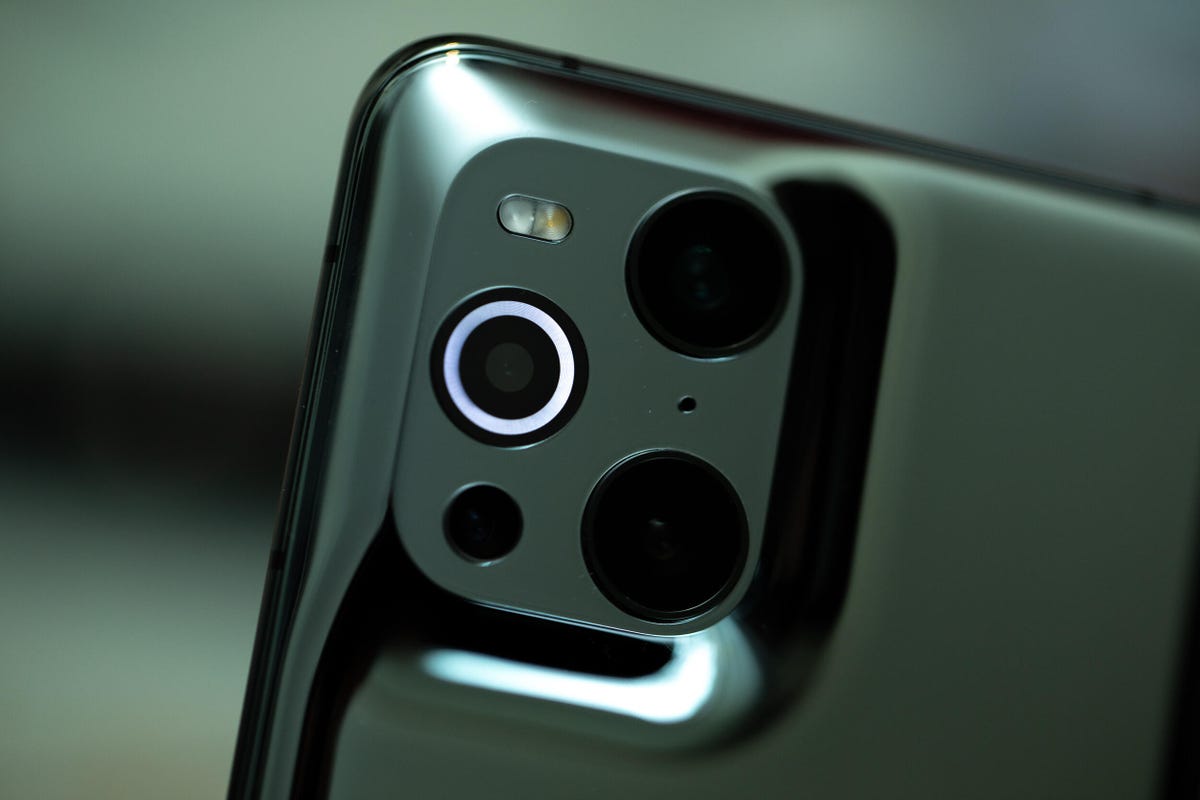
It looks beautiful. Most phones look moreor less the same these days but I like what Oppo has done here. I particularly like the way the all-glass back curves and flows up and around the camera lenses, rather than there being a distinct "camera unit" you'd see on phones such as the Galaxy S21.
The mirrored effect looks great too, and adds to the overall luxurious aesthetic of the device. It's helped as well by the metal edge and the almost bezel-free display. The downside is that it's a fingerprint magnet and it'll need a thorough polishing every time you pick it up with sticky fingers.
Andrew Hoyle/CNET
Its microscope camera is amazing
Phone cameras aren't exciting anymore. Most companies offer the standard wide, super-wide and telephoto lens options. The Find X3 Pro packs an extra treat though in the form of a microscope camera that offers a huge amount of magnification for tiny details.
You can get seriously close up (I'm talking about 1 to 2 millimeters) to capture details that are almost impossible to see with your own eye. Normally this would also block out the light falling on your subject, but Oppo has put a small LED ringlight around the microscope lens which casts its own light to illuminate your subject.
A guitar string taken with the microscope camera.
Andrew Hoyle/CNET
An iPad Pro's display pixels taken with the microscope camera.
Andrew Hoyle/CNET
Printed text in a book taken with the microscope camera.
Andrew Hoyle/CNET
It works surprisingly well and I've enjoyed taking the phone out and about to capture close-up images of the hidden world that's right under my nose. Admittedly, this might be a bit of a novelty feature. It's possible you'll use for a bit at first and then never touch again. After all, it does just do one thing, so if you're not bothered about microscopic photos then it might feel like a waste of money.
Still, it's great to see something new on a phone and I've genuinely enjoyed using it.
The other cameras are excellent, too
The microscope camera isn't the only camera to be excited about, though. The whole setup on the back of the phone can take excellent shots. The main 50-megapixel camera takes images with great exposure and colors, while the super-wide angle lens uses the exact same 50-megapixel image sensor, meaning there's no drop in image quality, exposure or color when you switch between the two views.
Find X3 Pro standard camera lens.
Andrew Hoyle/CNET
Find X3 Pro super-wide camera lens.
Andrew Hoyle/CNET
Find X3 Pro standard camera lens.
Andrew Hoyle/CNET
Find X3 Pro standard camera lens.
Andrew Hoyle/CNET
Find X3 Pro super-wide camera lens.
Andrew Hoyle/CNET
Find X3 Pro 2x zoom.
Andrew Hoyle/CNET
Find X3 Pro 5x zoom.
Andrew Hoyle/CNET
There's also a 2x optical zoom, which delivers crisp, clear images. And there's a 5x zoom, which digitally zooms in even further but does so at the expense of quality.
The screen is beautiful
The phone's 6.7-inch display is glorious. For a start, its 3,160x1,440-pixel resolution means it's absolutely pin-sharp. It's bright enough to be clear when you're outdoors and its 120Hz refresh rate makes it buttery smooth when swiping around.
Oppo also reckons it's capable of displaying a billion colors. I'm not prepared to sit here and count them, but I can say that the colors do look superb, with rich, vibrant tones that look great when gaming or watching Netflix.
Andrew Hoyle/CNET
It's packed with power
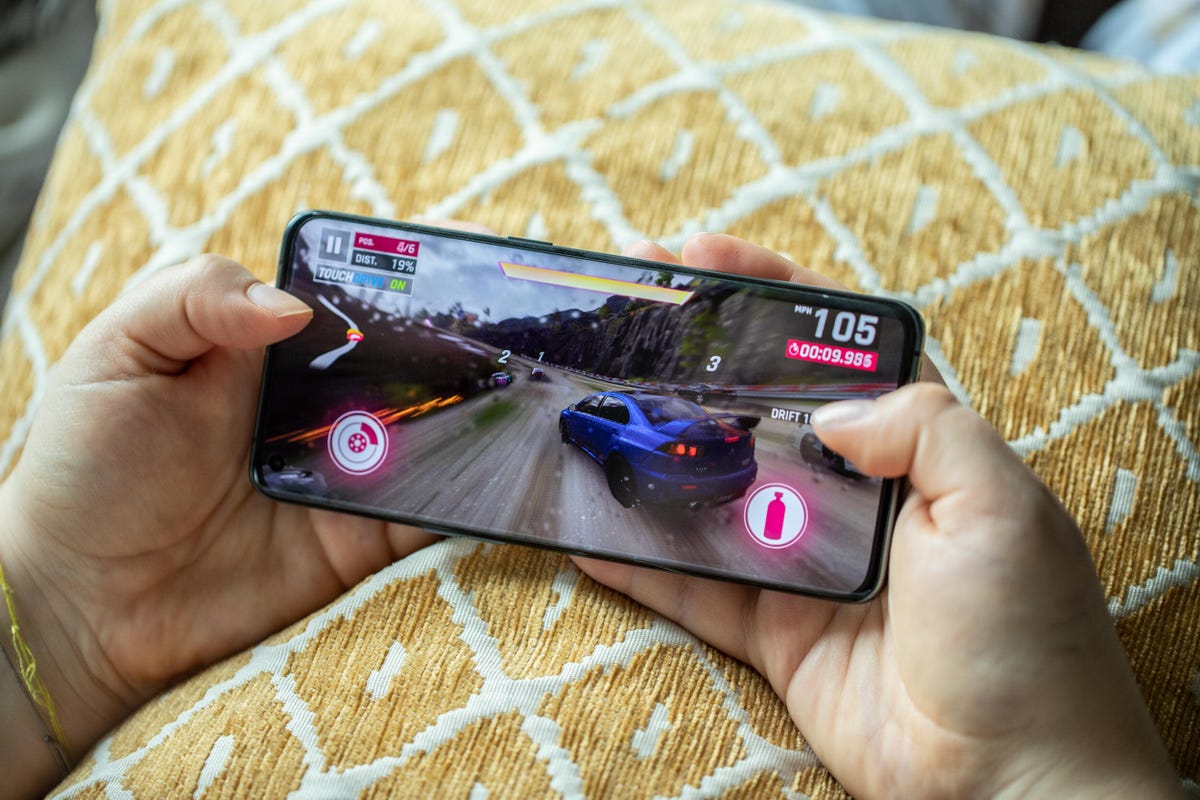
Speaking of gaming, this phone is a powerhouse when it comes to playing demanding games or tackling other heavy-duty tasks like photo editing. It's running Qualcomm's top-end Snapdragon 888 processor, backed up by 12GB of RAM and it put in some blistering scores on our series of benchmark tests, comfortably keeping pace with the powerhouse Galaxy S21 Ultra.
It played Asphalt 9: Legends with smooth frame rates and handled image editing in Snapseed without any issue. There's little you'd be able to throw at this phone that would slow it down.
Andrew Hoyle/CNET
What else?
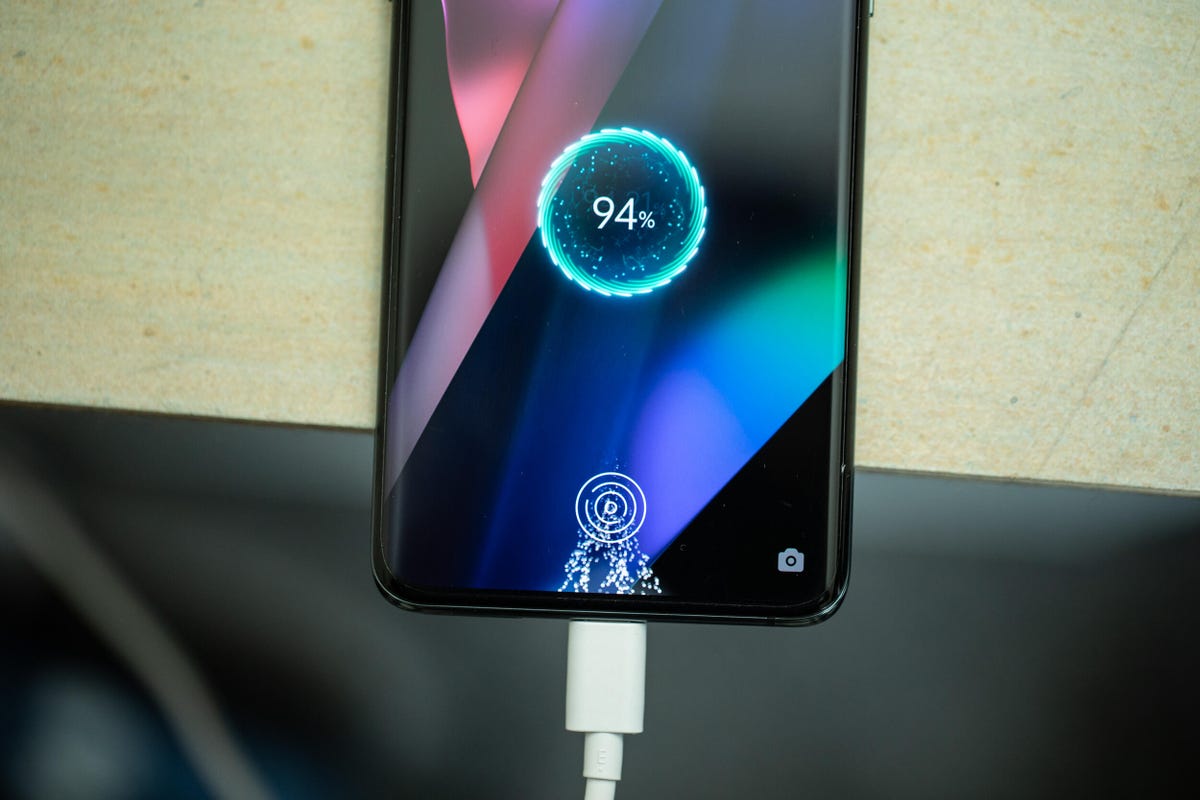
It's 5G-enabled, so you'll be able to take advantage of super-fast data (assuming you're in an area where it's available), it has an accurate fingerprint reader, built invisibly into the display and it runs the latest Android 11 software. The 4,500-mAh battery should get you through a full day of use, while the 65-watt fast charging can give you up to 40% charge back in 10 minutes if you need a quick top-up.
The Find X3 Pro will be joined by the Find X3 Neo and Find X3 Lite, both of which come with more modest specs and, unsurprisingly, a more modest price tag.
Oppo Find X3 series comparison chart
Oppo Find X3 Pro
Oppo Find X3 Neo
Oppo Find X3 Lite
Main camera resolution
50mp
50mp
64mp
Main camera aperture
f/1.8
f/1.8
f/1.7
Ultra-wide camera resolution
50mp
16mp
8mp
Telephoto lens
13mp
13mp
NA
Front-facing camera
32mp
32mp
32mp
Video capture
4K
4K
4K
Processor
Qualcomm Snapdragon 888
Qualcomm Snapdragon 865
Qualcomm Snapdragon 765G
Storage
256GB
256GB
128GB
RAM
12
12
8
Expandable storage
No
No
No
Battery
4,500 mAh
4,500 mAh
4,300 mAh
Fingerprint sensor
In-display
Connector
USB-C
USB-C
USB-C
Headphone jack
No
No
No
Special features
Microscope camera, IP68 waterproofing, 65W fast charging, 5G
People are hot to get their mitts on Cadillac's electric Lyriq SUV.
2 of 46 Andrew Krok/CNET
The first round of orders sold out in mere minutes, and after making an entire model year's worth of 'em available in the same way, those too sold out.
3 of 46 Andrew Krok/CNET
That's a hell of a blind gamble from the general public, but after driving the Lyriq, I think these folks are about to hit the jackpot.
4 of 46 Andrew Krok/CNET
Every step Cadillac took in creating the Lyriq addresses the issues from its current crossovers in major ways.
5 of 46 Andrew Krok/CNET
There are 102 kilowatt-hours' worth of battery cells integrated into the Cadillac's floor, offering an EPA-estimated range of 312 miles in rear-wheel-drive configuration.
6 of 46 Andrew Krok/CNET
Maybe 340 horsepower and 325 pound-feet of torque doesn't sound like all that much, but it's more than enough to get the Lyriq moving in a hurry.
7 of 46 Andrew Krok/CNET
The accelerator pedal is tuned for smoothness, but swapping to Sport mode on the infotainment display will perk up the response a bit.
8 of 46 Andrew Krok/CNET
One-pedal driving is offered in two different strengths, and I prefer it in its strongest setting, which allows for some serious deceleration in case I misjudge stopping distances.
9 of 46 Andrew Krok/CNET
But there's also a pressure-sensitive on-demand paddle on the left side of the steering wheel that lets me dial it in gradually, which is a neat addition.
10 of 46 Andrew Krok/CNET
Keep scrolling to check out even more pictures of the 2023 Cadillac Lyriq.
Google pixel 6a phone google pixel 6a usa google pixel 6a on verizon google pixel watch announcement google pixel smart watch google pixel watch release date google pixel watch 2022 google pixel watch battery life google pixel
Google Pixel Watch and 6a Phone Reportedly Leak Online
Google Pixel Watch and 6a Phone Reportedly Leak Online
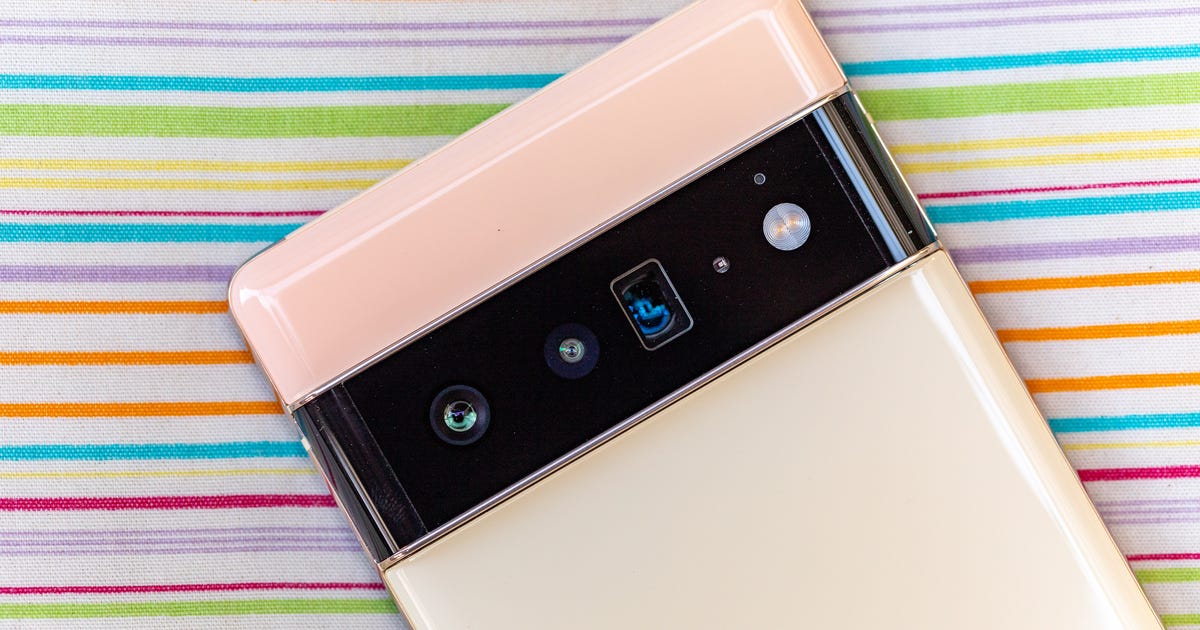
Google's upcoming Pixel 6a phone and rumored Pixel Watch have reportedly leaked via a carrier's inventory system. The online leak, reported earlier Tuesday by Android Police, was attributed to an unnamed source.
The US carrier's database reportedly shows Google's next flagship phone will come in black, white or green, and have 128GB of storage.
The Pixel Watch leak shows it will have 32GB of storage, and come in black, gold and gray versions, Android Police reported.
Pixel watches have been rumored for years now, but thus far Google has only provided Android software for other smartwatch makers, like Samsung.
Google didn't immediately respond to a request for comment, but its next series of devices are expected to be launched in spring of 2022 at its yearly I/O conference, which typically takes place in May.
Read more: Pixel Watch rumors: What we're expecting from Google's first smartwatch
Fitbit tips 12 tricks to get the most out of the fitness center fitbit tips 12 tricks to help fitbit tips 12 tricks to stop fitbit tips 12 tricks to lose weight fitbit 12000 steps fitbit 125 how to turn off fitbit tips fitbit sense tips fitbit ionic tips
Fitbit Tips: 12 Tricks to Get the Most Out of the Fitness Device
Fitbit Tips: 12 Tricks to Get the Most Out of the Fitness Device
Fitbit is essentially synonymous with step tracking, but the company's newer smartwatches and fitness bands are capable of more than just tracking activity. The Google-owned digital health company has packed its recent wearables with updates and features, including new metrics like a readiness score, a faster pairing process for Android devices and the ability to measure stress levels on the Fitbit Sense and Charge 5.
Fitbit sells a range of different trackers and smartwatches. The $100 Inspire 2 fitness band is among the cheapest, while the $300 Sense smartwatch is at the high end. And even though Fitbit is working with Google on a Pixel Watch for later this year, Fitbit is still supporting its trackers with plans for new Fitbit devices to come. Because the software and features differ between devices, some of these tips might not work on all models. The steps listed below could also vary depending on whether you're using an iPhone or Android device.
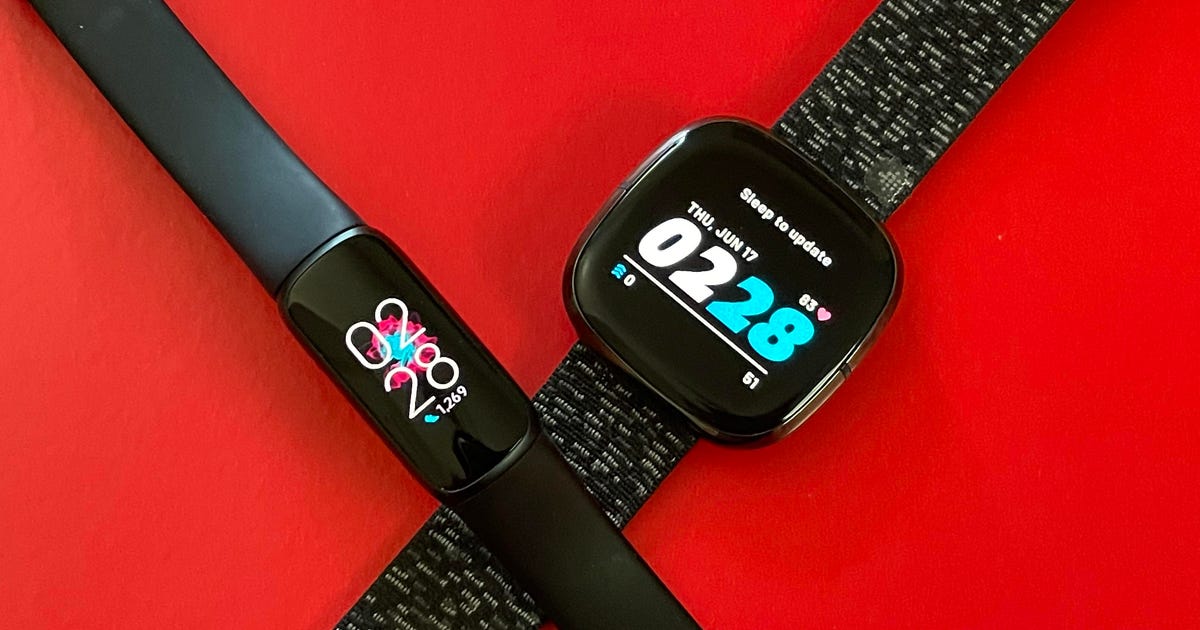
See the time even when the screen is off
Fitbit's always-on display option (not pictured) makes it easier to see the time quickly.
Lexy Savvides/CNET
Fitbit devices are designed for fitness and activity tracking, but they double as a watch. You can make it easier to see the time at a glance without having to raise your wrist or tap the screen by enabling always-on mode. As the name implies, this makes it possible for the screen to show the time even when the display is asleep. Just remember you'll have to sacrifice a little battery life to get this benefit.
The instructions for enabling this feature vary depending on which Fitbit you own.
On the Charge 5 and Luxe, swipe down from the clock face, tap the Settings option, choose Display Settings and then select Always-on display.
On the Sense and Versa 3, swipe right from the clock face and tap the always-on display symbol, which looks like a clock.
On the Versa 2, swipe down from the top of the screen to see your notifications. Then, swipe down again to access the control center. Tap the quick settings icon and press the always-on display icon.
Choose which stats you want to see first during a workout
The Fitbit Versa 2.
Sarah Tew/CNET
Exercise goals and preferences can vary depending on the person. Some people may care more about calorie burn, for example, while others prioritize heart rate. That's why you can choose which stats you want to see during a workout on the Fitbit Sense, Versa and Ionic series.
Get started by opening the watch's Exercise app and choosing the workout you'd like to customize. From there, tap the gear icon in the top left if you own an Ionic, Versa, Versa Lite Edition or Versa 2, and select the Customize stats option. Then, choose which stats you want to see in the top, middle and bottom slots on your device.
The directions are a little different for Fitbit Sense and Versa 3 owners. From the Exercise app, select the workout you'd like to customize and then swipe up from the bottom of the screen to access the device's exercise settings. Under the Show stats section, you can select the top, middle and bottom options to edit the stats you'd like to see in each slot.
Pair your Fitbit with Android just by holding it near your phone
Lisa Eadicicco/CNET
Fitbit and Google want to make setting up your new device almost effortless. Taking a page from Apple's book, Google's Fast Pair feature speeds up the pairing process by connecting your new Fitbit to your Android phone when the two devices are near one another. You just need to turn on your Fitbit device and make sure your phone's Bluetooth is enabled to get started, and then you should see a prompt to download Fitbit's app. It works on models such as the Luxe, Charge 5 and Inspire 2.
Customize your exercise options
You can edit your exercise shortcuts on certain Fitbit devices.
Screenshot by Lisa Eadicicco/CNET
We all prefer certain workouts over others, whether it's running, spinning, yoga or just walking. Luckily, Fitbit lets you tailor the list of available workouts to your liking on certain devices. Just open the Fitbit app, tap on your profile picture and select your device. Then, tap ExerciseShortcuts to modify your Fitbit's workout options. You can select the + Exercise Shortcut button to add a new activity type, swipe left on a workout to delete it or use the Edit button to reorder your workouts. Just note that the Fitbit Sense and Versa 3 do not have a shortcuts list, but Fitbit says all workout modes are available in the exercise app for the Sense, Versa and Ionic series watches.
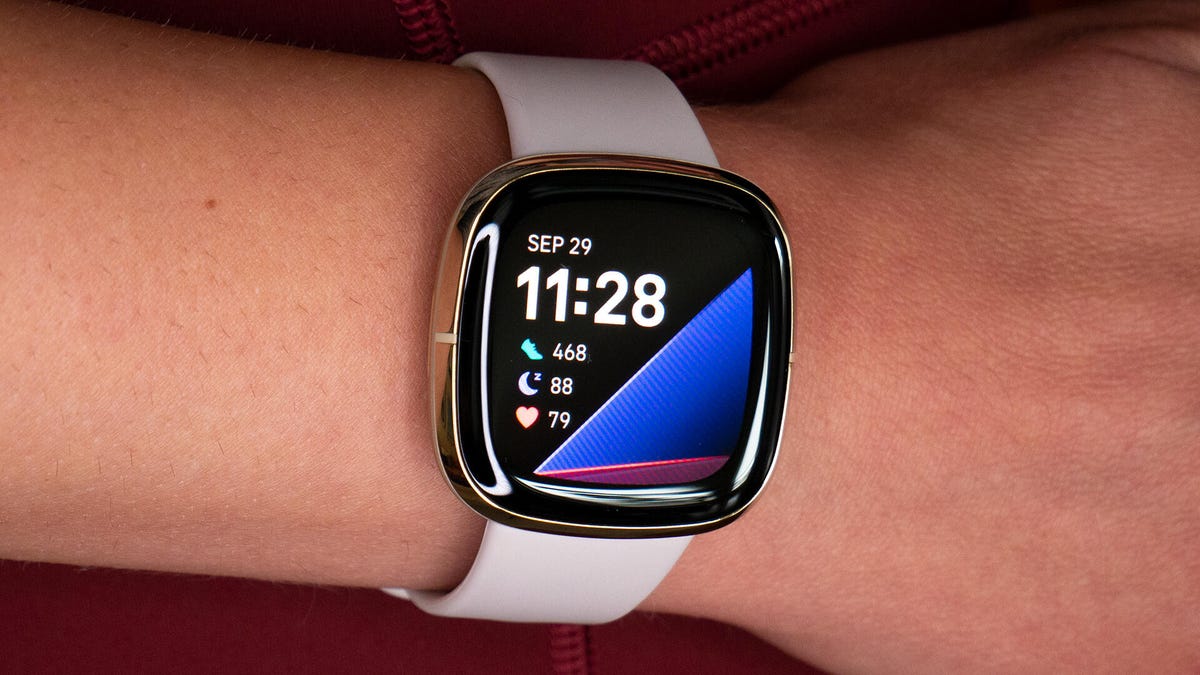
Start an exercise with a single press on the Fitbit Sense
The Fitbit Sense.
Lexy Savvides/CNET
The Fitbit Sense's exercise app is easy to access, but there are times when you may want to start a workout instantly. Customizing the Fitbit Sense's wake button can help you do just that.
Press and hold the side button, and your watch will pull up several different apps and features that can be launched by long pressing this same button. Options include the alarms app, weather, Spotify, your voice assistant of choice and more. Scroll down until you see Exercise, and select the workout mode you'd like to launch when long pressing the side button. If you don't want to choose a specific workout, you can also choose to have the exercise app open when the side button is long pressed.
Additionally, you can customize the side button's long press actions through the Fitbit Sense's settings menu. Swipe over to the Sense's app screen and tap the Settings icon. Choose Shortcuts, and then select the Press & Hold option. From there, tap Exercise and choose the activity you'd like to launch when long pressing the wake button.
Find your lost Fitbit Inspire 2 with the Tile app
The Fitbit Inspire 2 now works with Tile.
Fitbit
Smaller fitness trackers such as the Inspire 2 can be easy to lose or misplace. That's why Fitbit has partnered with Tile to build its Bluetooth location-tracking service directly into the Inspire 2. You'll have to download Tile's app and make sure your fitness band's software is up to date before using it. But once it's set up and registered in the Tile app, you'll be able to ring your Inspire 2 if it's within Bluetooth range or see its last location on a map.
Use your Fitbit to find your phone
The Sense smartwatch supports Fitbit's Find My Phone feature.
Lexy Savvides/CNET
We've all been there; maybe you left your phone in your jacket, or perhaps it slipped in between the couch cushions. That's where Fitbit's Find My Phone app comes in handy. Just open the app on your watch and your Fitbit will prompt your phone to ring and vibrate until it's found. The Fitbit app must be running on your phone for this feature to work, and it's available on the Fitbit Sense, Versa 2 and Versa 3.
Pay for Starbucks from your wrist
Lisa Eadicicco/CNET
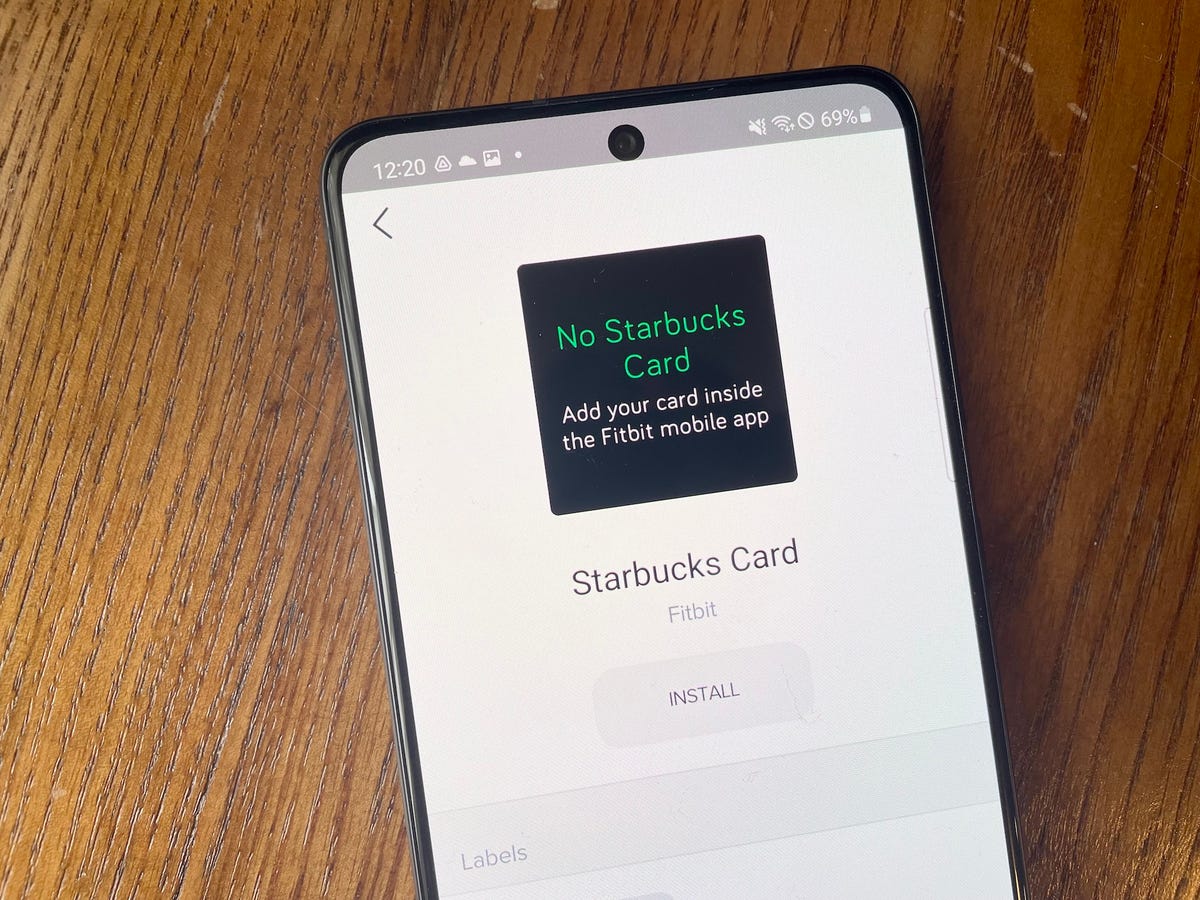
The Starbucks Card app lets you add your Starbucks gift card or rewards program number to your Fitbit smartwatch so that you can pay without having to reach for your wallet or phone. You can install the Starbucks Card app on your Fitbit through the Fitbit mobile app, but keep in mind that it's only available for the company's smartwatches including the Sense, Versa lineup and older Ionic watch, according to the app listing.
Fitbit also has its own contactless payments system called Fitbit Pay that lets you store your credit card on your wrist. It works with contactless card readers similar to Apple Pay, Samsung Pay and Google Pay.
Have Fitbit tell you if you should hit the gym or take it easy
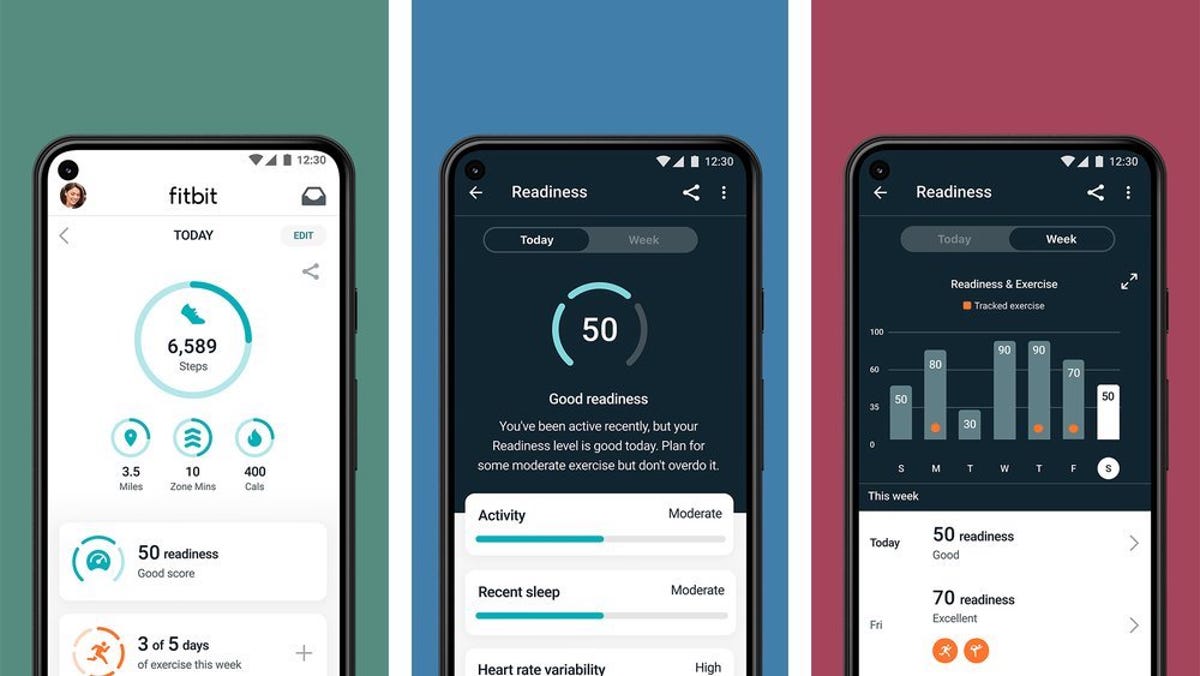
Fitbit's Daily Readiness Score tells you when it's time to exercise or rest and recover. It's exclusive to Fitbit Premium subscribers.
Google
Sometimes it can be hard to tell whether it's time to push yourself or take a rest day. Fitbit is trying to help with its Daily Readiness Score feature, which rolled out in November and is similar to the Oura ring's Readiness Score. Fitbit issues a score based on factors like your recent sleeping habits, heart-rate variability and activity that indicates whether you should exercise or prioritize recovery.
It works on the Fitbit Sense, Versa 3, Versa 2, Charge 5, Luxe and Inspire 2, but it's only available for Premium subscribers and must be enabled in the Fitbit app. You also have to wear your device for at least four days, including overnight.
Adjust your stride length to make step counting more accurate
Screenshot by Lisa Eadicicco/CNET
Fitbit automatically calculates your stride length after you track a run with GPS. But you can also measure your own stride length and add it to the app manually. To do so, Fitbit suggests counting your steps as you walk or run at a location where you can easily tell the distance, such as a track. You should also travel at least 20 steps when measuring your stride, according to Fitbit. Then, divide the distance traveled in yards or meters by the number of steps.
Once you've measured your stride length, open the Fitbit app and tap on your profile picture in the top right corner. Under Settings, choose Activity & Wellness and tap Exercise. Tap Stride Length and enter your measurements.
Listen to your exercise stats during a workout
Screenshot by Lisa Eadicicco/CNET
Fitness trackers make it easier to see exercise statistics at a glance, but it's not always feasible or comfortable to look down at your wrist during a workout. That's why Fitbit's app can dictate certain metrics audibly, such as distance, time, average pace, split pace and calories burned. You can choose which of these stats you'd want to hear during your workout, and also customize the frequency of alerts by distance or time.
Open the Fitbit iPhone app, tap your profile picture and scroll down to the Activity & Wellness category under Settings. Tap Exercise and scroll down to see the Play During Exercise option, which can be found underneath the list of auto recognized exercises. If you're using the Android app, tap the exercise tile in the Today feed and press the stopwatch icon in the top right corner. Then, toggle the switch next to Use voice cues to enable or disable this option.
Turn off those reminders to move
Screenshot by Lisa Eadicicco/CNET
We can all probably use a reminder to get up and move around for a bit, especially when working from home. But those little nudges may not be helpful for everyone, and some might find them annoying. To turn move reminders on or off, open the Fitbit app on your phone and tap your photo in the top left corner. Choose your Fitbit device from the list, and scroll down to the Reminders to Move option. From here, you can turn reminders on or off completely, or set them for certain time windows or days of the week.